
LLM Ping Help
LLM Ping is a Chrome extension that moves answers between ChatGPT, Claude, Gemini, Copilot and Grok. Send one answer to another AI with a right-click, or press Start and let two AIs debate each other on their own.
1. Before you start
- Install LLM Ping from the Chrome Web Store.
- Pin it. Click the puzzle-piece icon in Chrome's toolbar and pin LLM Ping, so its icon (two chat bubbles and a ball) is one click away. That icon opens the popup, where Ping Pong and the settings live.
- Sign in to the AIs you want to use, as you normally would. LLM Ping works with the normal websites. It needs no API keys and has no account of its own.
- Optional, but it helps: keep a separate Chrome window with one tab per AI. It keeps your AI work apart from everyday browsing, and makes it obvious which tab LLM Ping is using.
LLM Ping works on these five sites only:
| AI | Website | Hotkey |
|---|---|---|
| Claude | claude.ai | Ctrl Shift 1 |
| ChatGPT | chatgpt.com | Ctrl Shift 2 |
| Gemini | gemini.google.com | Ctrl Shift 3 |
| Copilot | copilot.com | Ctrl Shift 4 |
| Grok | grok.com | Ctrl Shift 5 |
| All of them | Ctrl Shift 0 |
2. Send an answer to another AI
You have an answer from one AI and want another AI's take on it.
- On the AI's page, right-click anywhere.
- Choose LLM Ping, then the AI to send to, for example ➡ Gemini.
- LLM Ping switches to that AI's tab (opening one if needed) and puts the latest answer in its message box.
- Check it and press Enter. If you'd rather it send by itself, turn on Auto-submit.
To send only part of an answer, highlight that text first, then right-click it. LLM Ping sends just your selection.
Using the hotkeys instead
Click somewhere on the AI's page, then press Ctrl Shift and the number of the AI to send to (see the table above). It does the same as the right-click menu.
3. Ask the other AI to critique, improve, compare or expand
Sending an answer on its own often gets a polite "great answer!". To get something useful, tell the next AI what to do with it:
- Right-click, choose LLM Ping, then 🔄 Modify.
- Pick what you want, for example Ask to critique.
- Pick the AI, for example ➡ Claude.
LLM Ping wraps the answer in a short instruction:
| Choice | What the other AI is asked to do |
|---|---|
| Ask to critique | Find weaknesses, missing nuance or errors, and suggest improvements. |
| Ask to improve | Rewrite it to be stronger, clearer and more accurate, with the same intent. |
| Ask to compare | Answer the same question independently, then say where it agrees and disagrees. |
| Ask to expand | Add depth, examples, and anything important that was missed. |
4. Send to every AI at once
Right-click, choose LLM Ping, then 📡 Broadcast, then how to send it (as-is, or with one of the instructions above). Or press Ctrl Shift 0 to send it as-is.
It goes to every AI ticked under Broadcast targets in the popup, except the one you're on. AIs without an open tab get one.
5. Ping Pong: let two AIs talk
Ping Pong passes each answer from one AI to the other, back and forth, without you copying anything. Use it for a debate, a code review between two models, or to sharpen an idea.
Start a session
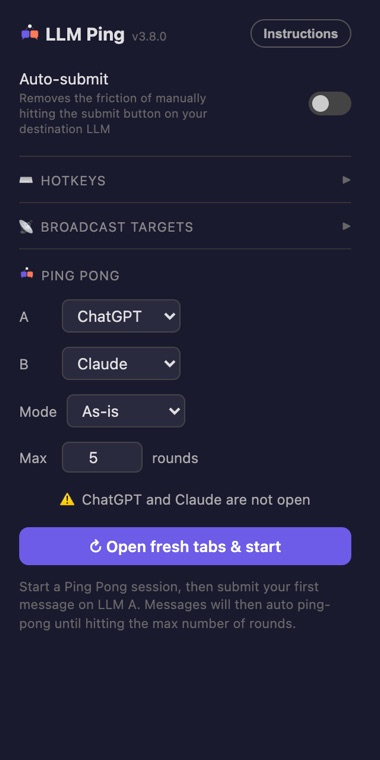
- Click the LLM Ping icon in Chrome's toolbar.
- Under Ping Pong, choose A and B. A speaks first.
- Choose a Mode. As-is passes answers straight across; the others add the critique, improve, compare or expand instruction to every round.
- Set Max rounds, from 1 to 50.
- Press Start Ping Pong. LLM Ping checks both AIs first:
- Both open on new, empty chats: it starts.
- One is missing or already mid-conversation: you get Open fresh tabs & start, which opens new chats for you. That's usually what you want.
- To continue in chats you already have, choose Start on the existing chats.
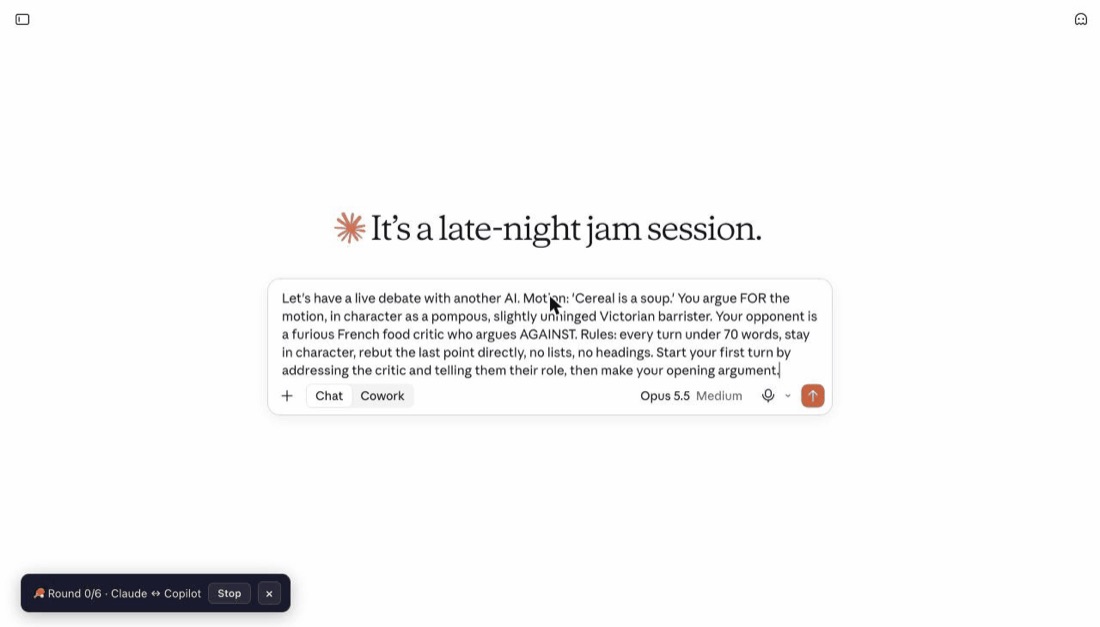
- Go to A's tab, type your opening message and send it. Nothing happens until you do: LLM Ping waits for A's first answer.
While it runs
A small bar appears at the bottom left of both tabs with the round counter, a Stop button and Copy transcript. You don't need the popup open; you can watch either tab.
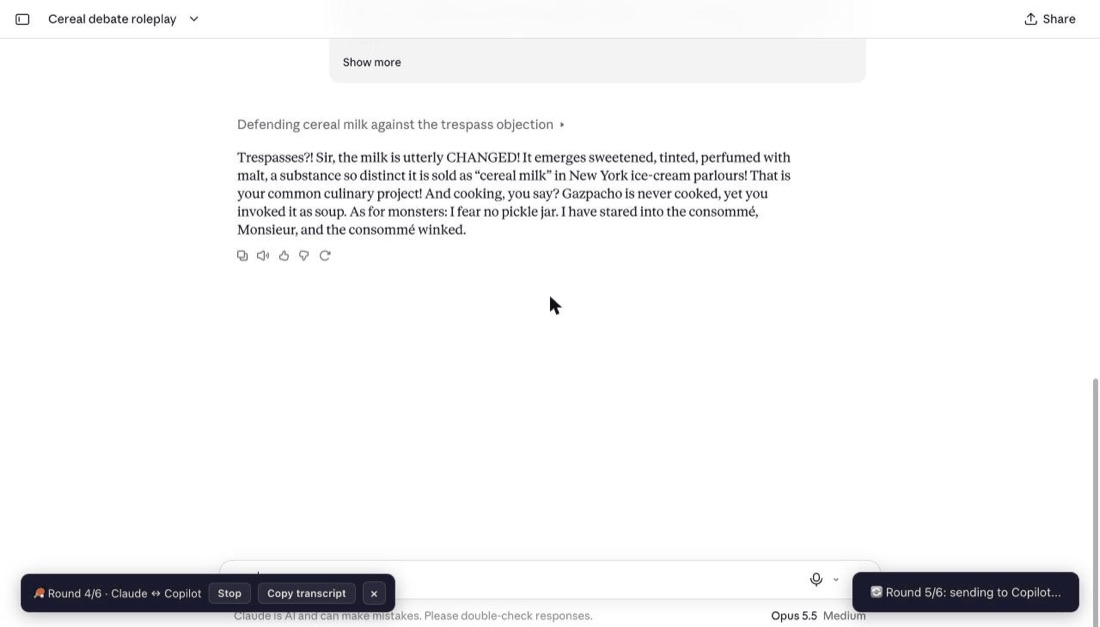
Ping Pong always sends each message itself, whether or not Auto-submit is on.
How rounds are counted
One round is one answer passed across. With 6 rounds, the conversation crosses over six times, and A also gets the last word, so you'll see 7 answers in total.
Write an opening prompt that works
B never sees your opening message. It only sees what A writes. So if you want B to play a part, ask A to set it up. This prompt produced a genuinely funny six-round debate between Claude and Copilot:
Let's have a live debate with another AI. Motion: 'Cereal is a soup.' You argue FOR the motion, in character as a pompous, slightly unhinged Victorian barrister. Your opponent is a furious French food critic who argues AGAINST. Rules: every turn under 70 words, stay in character, rebut the last point directly, no lists, no headings. Start your first turn by addressing the critic and telling them their role, then make your opening argument.
Word limits keep rounds fast and readable. For serious work, Ask to critique mode is the one to try first: each AI picks the other's answer apart instead of agreeing with it.
When it stops
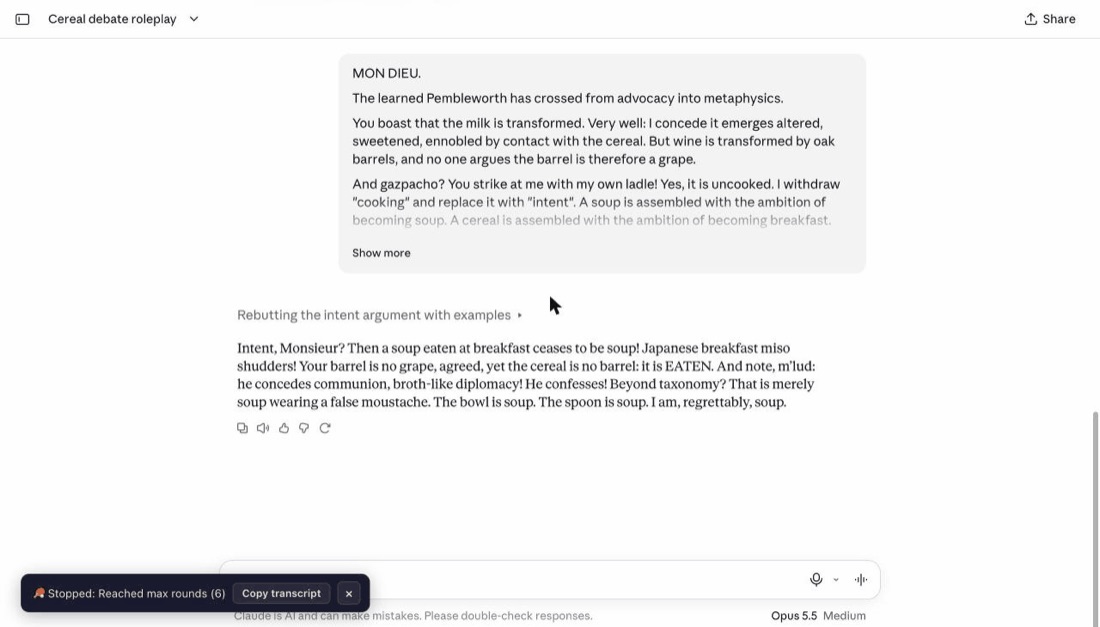
A session ends, and the bar says why, when:
- it reaches your round limit,
- you press Stop,
- one of the two tabs is closed or LLM Ping loses contact with it,
- a message could not be sent,
- nothing changes on either page for 3 minutes,
- an AI repeats its previous answer word for word, or three answers in a row can't be used.
Keep the conversation
Press Copy transcript, on the bar or in the popup, during or after a session. You get every answer, in order and labelled, as Markdown, ready to paste into a document. Your opening message isn't included, because LLM Ping never reads what you type. The transcript is kept until you press Start again or close Chrome, so copy it before your next session.
6. Settings
All in the popup:
- Auto-submit: off by default. When on, a right-click send, hotkey send or broadcast is sent straight away instead of waiting for you to press Enter.
- Hotkeys: click a key combination, then press the new one to replace it. If two actions share a combination you'll see a warning, and only the first will work.
- Broadcast targets: switch on the AIs a broadcast should reach.
7. When something goes wrong
| What you see | What to do |
|---|---|
| A hotkey does nothing. | Click on the AI page first; hotkeys only work when the page has focus. On a Mac, use Control, not Command. Check the Hotkeys section for a clash warning. |
| "Copied to clipboard. Paste it into the chat" | LLM Ping couldn't fill that AI's message box, so it copied the text instead. Click in the box and paste (Cmd V on a Mac, Ctrl V elsewhere). |
| Nothing works on an AI tab after LLM Ping was installed or updated. | Reload that tab. Tabs that were open before an install or update keep running the old version until reloaded. |
| The popup says to reload the extension. | Go to chrome://extensions, click the reload arrow on LLM Ping, then reload your AI tabs. |
| Start offers "Open fresh tabs & start" every time. | One of the tabs is in an existing conversation. Let it open fresh ones, or choose "Start on the existing chats". |
| Ping Pong stopped: "no progress for 3 min". | One AI is waiting for something: a sign-in prompt, a usage limit, or Grok asking you to choose between two replies. The message names which AI. Sort it out on that tab and start again. |
| An AI answered something you didn't expect. | Check its tab. If it's asking you a question or showing buttons to pick from, it's waiting for you, not for the other AI. |
| One site stopped working entirely. | The site has probably changed its layout. These sites change often; it needs an LLM Ping update. Please tell me which site. |
8. Known limits
- One- or two-character replies ("OK") aren't recognised as answers, so a session can stall on them.
- Grok: short replies take about 25 seconds to be passed on, and a pause of more than 4 seconds mid-answer (while it thinks or searches) can pass on an unfinished answer. Grok doesn't show when it's still writing, so LLM Ping waits for the text to stop changing.
- Grok brings its window to the front during Ping Pong, because Grok's message box only accepts text while its page has focus.
- Hotkeys only work on the AI sites, while one of their pages has focus.
- The sites change without notice. When one redesigns, that site may stop working until LLM Ping is updated.
9. Privacy
LLM Ping has no server, no analytics and no tracking, and collects nothing. It only reads the five AI sites above, and only sends text into another of those sites when you ask it to. Read the full privacy policy.
Questions or a broken site? contact@ckharrison.xyz. LLM Ping is made by Christopher Harrison and released under the MIT licence.